Basic Ruby Tutorials: 01 | 02 | 03 | 04 |
Note: You have the flexibility to proceed to tutorial 3 or 4 as you complete the items below over several days. At minimum, try to install the Atom.io editor, then create and save a new file (steps 1-2).
This is a straight forward setup. Mac install process.
Why do I need Atom.io? Atom.io is a Ruby file-project editor. Atom.io displays your code in a way that is easy to read and easy to debug. It also shows you which files belong together. More complex programs have many files. Atom.io organizes all of these files into a project for you.
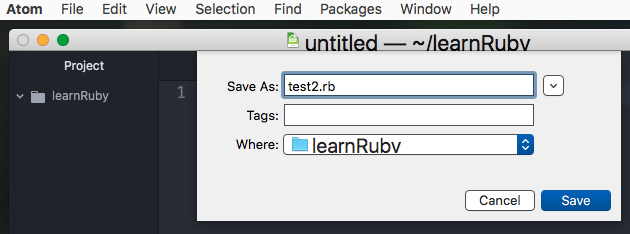
Open Atom.io. In the top menu bar choose -> File -> New File.. Save the file as test2.rb
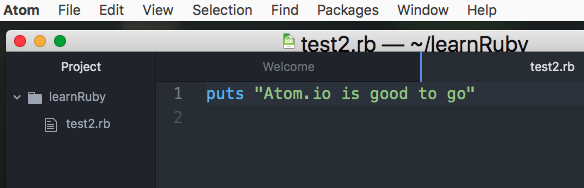
in your learnRuby directory. Add the following text and save again:
puts Atom.io is good to go
Test your file. Open the Command Line Window and enter the following text:

Note: This is a flexible item. You may be able to skip it now and come back to it later if your program gives you an error message related to missing Xcode.
Why do I need Xcode? Xcode adds functionality to your Ruby libraries giving you more Ruby commands (functions).
To install, type this code in your command line window, then press the Enter/Return key.

Some RubyGem code comes pre-installed on your Mac. This is what you are checking for here.
What are RubyGems? RubyGems can save you a lot of time. RubyGEMS are code libraries and stand-alone Ruby code modules (applications) that contain already compiled and ready-to-use software.
You call the RubyGem from inside your code. It will do a specified function for you, typically returning a value or variable to your code.
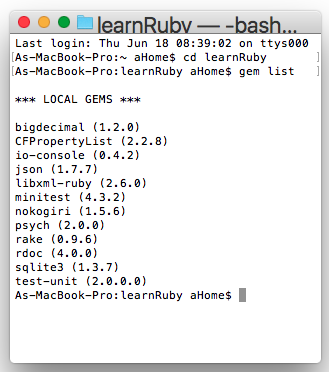
To verify what RubyGems are already on your system, type this code in your command line window, then press the Enter/Return key.